

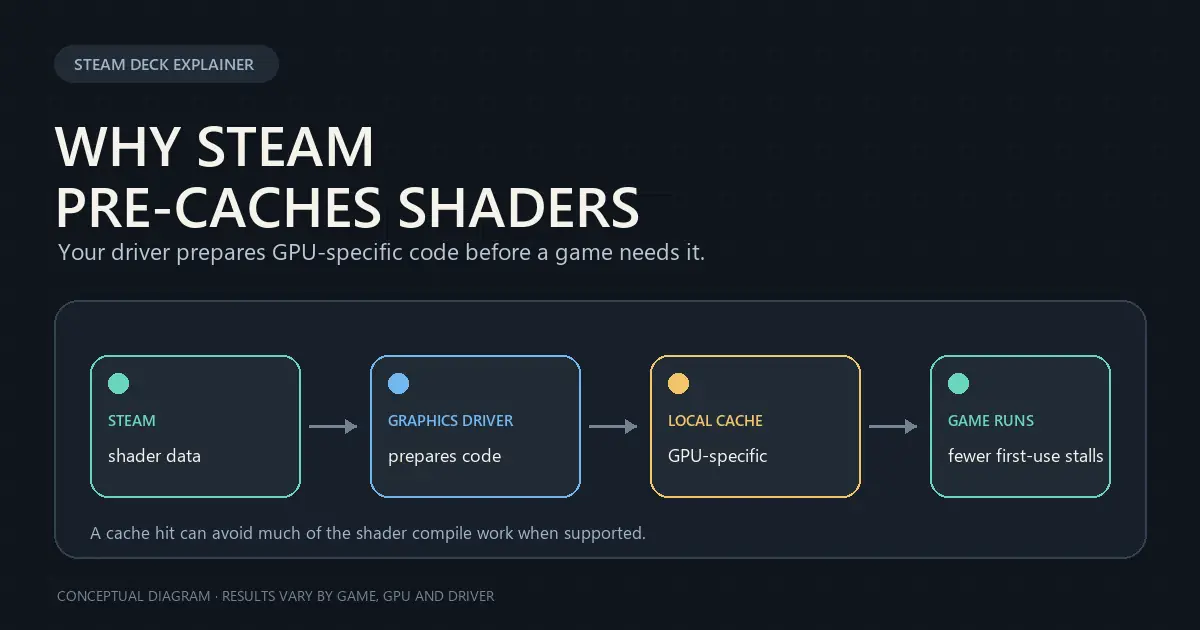
Conceptual illustration; results vary by game, GPU and driver.
Steam Deck's “Processing Vulkan shaders” screen can look like another game update, but Steam is preparing graphics work. Shaders are small programs that render lighting, materials and effects. On supported OpenGL and Vulkan games, Steam can download shader pre-cache data and process it for your video card. Valve says this can reduce load times and stuttering during the first launches, though the feature can use extra bandwidth.
For games running through Proton, this pre-cache step is still a Steam client and graphics-driver job. A Valve maintainer explains that Steam feeds hardware-independent shader data to your driver, which turns it into GPU-specific code and stores it in a local cache. That reuse helps explain why later launches can process faster—and why “Vulkan shaders” is not necessarily a new game patch.
This moves some work ahead of play rather than removing compilation altogether. If the driver does not have a matching shader in its cache, the game may still wait while the driver compiles it; a cache hit can avoid much of that work. The benefit varies by game and hardware. Steam also has an option to let Vulkan shader processing happen in the background, and Valve exposes a control to disable pre-caching. Turning it off stops that proactive preparation, but can mean more compiling when the game needs a shader and possible first-use stutter.
[Valve's original feature description](https://store.steampowered.com/oldnews/35534) · [A Valve maintainer's technical explanation](https://github.com/ValveSoftware/Proton/issues/7176)
~gaming ~SteamDeck
~
COMMUNITY
~Handheld PC
Discuss Steam Deck, ROG Ally and Legion Go. Explore Linux setup guides, compare gaming systems and share fixes for your handheld PC.
Guides and resources
CONVERSATIONS
Valve has added Steam Deck framerate distribution charts to the Steamworks dashboard for developers of Steam Deck Verified games. Alongside average FPS and player feedback, the charts show how framerates are spread across participating players’ sessions, giving studios more than a single average to work from.
The data is based on anonymized reports from players who opt in. It is a developer diagnostic, not a public performance score for shoppers, and it does not automatically change a game’s Verified badge. Valve says developers can use the figures alongside player reports to investigate performance and decide whether to adjust optimization or default settings.
There are important limits. The chart includes all sampled playtime, including loading screens; players’ frame-rate caps affect the results, and docked play on an external display can produce rates above the Deck’s own screen refresh. The LCD screen tops out at 60 Hz and the OLED at 90 Hz. So a chart can flag a pattern worth investigating, but it is not a controlled benchmark or a guarantee that every player will get the same performance.
The data is currently limited to Verified titles. That makes it most useful as a new feedback channel for games already meeting Valve’s compatibility bar, while leaving developers without the same chart for games marked Playable or unreviewed. The image shows a Steam Deck running Disco Elysium. Image: Valve, via PC Gamer.
Sources: [Valve’s Steamworks announcement](https://steamcommunity.com/groups/steamworks/announcements/detail/676258795703239817) · [PC Gamer](https://www.pcgamer.com/hardware/handheld-gaming-pcs/valve-is-telling-devs-how-well-their-games-actually-run-on-steam-deck-with-real-world-data/) · [Steam Deck HQ](https://steamdeckhq.com/news/devs-get-steam-deck-framerate-metrics/)
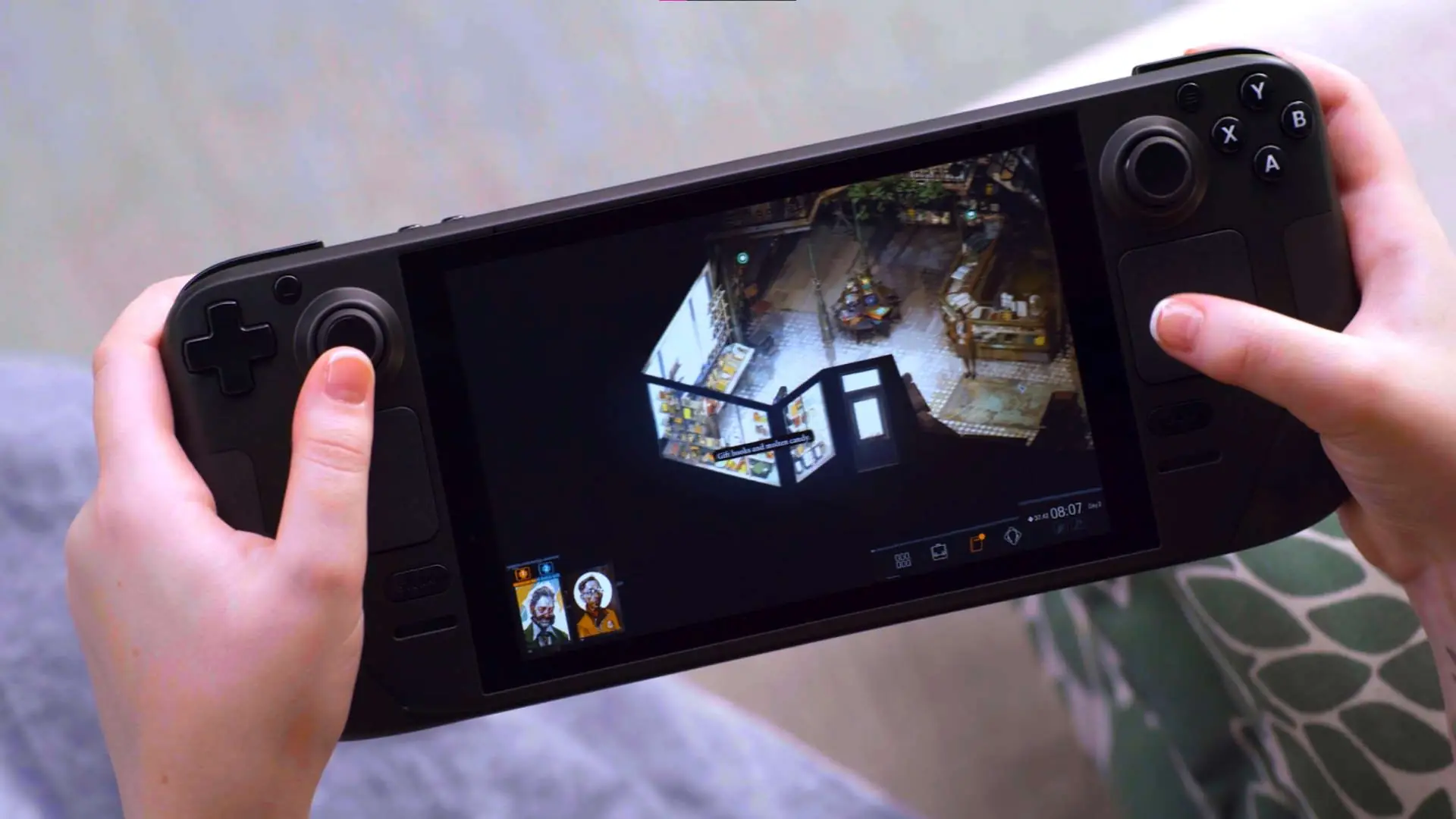
AMD plans to bring a lighter version of its FSR 4 upscaling technology to existing laptop and handheld gaming chips before the end of 2026, according to comments from senior vice president Jack Huynh at a Seoul press event. Huynh told South Korean outlet The Elec that the expansion would cover existing APUs as well as a new product line. AMD has not yet named compatible devices, games or a specific release date.
FSR uses machine learning to reconstruct a higher-resolution image from a lower-resolution render, helping games look sharper while reducing the work the graphics chip must do. The full FSR 4 release initially focused on newer Radeon graphics cards. Huynh said AMD is developing a dedicated, lighter model for APUs, with image quality and low latency as priorities. He also said new APUs with FSR 4 support are planned for this year, but did not identify their models.
That does not automatically mean every handheld will get the feature. Most ROG Ally and Legion Go models use Ryzen APUs, but official compatibility details are still missing. The Steam Deck is a particular question: Valve’s handheld uses older RDNA 2 graphics, and TechSpot reports it would likely need to wait for AMD’s separate RDNA 2 support, expected in 2027. Unofficial FSR 4 workarounds already exist for some games, but they are not the same as supported AMD software.
For handhelds, a well-tuned upscaler can matter because these devices often run games at lower resolutions to balance performance, heat and battery life. The announcement is a roadmap, not a performance result: real device and game tests will be needed to show whether the lighter model improves image quality without costing too many frames or draining more power.
Source: [The Elec’s interview with Jack Huynh](https://www.thelec.kr/news/articleView.html?idxno=63427); background: [TechSpot](https://www.techspot.com/news/114133-amd-fsr-4-coming-handhelds-laptops-end-2026.html). Photo: The Elec.

Acer has confirmed that its Atlas 8 premium gaming handheld will launch in October 2026, the company first entry into the growing Windows handheld market. First shown at Computex 2026, the device now lands squarely in the upper end of a crowded category that already includes the Steam Deck, Lenovo Legion Go, ROG Xbox Ally and MSI Claw.
The Atlas 8 is built around Intel Arc G3 processors, available in a standard or more powerful Extreme variant paired with Intel Arc B370 or B390 integrated graphics. A key part of the draw is an 8-inch 1920x1200 touchscreen with a 120Hz refresh rate, Variable Refresh Rate, touch controls that let players navigate Windows without relying on physical inputs, and peak brightness of up to 500 nits.
The build also targets sustained play: dual-fan cooling, full-size analogue sticks, Hall-effect triggers, rear macro buttons, a PredatorSense button, and an 80Wh battery in the top model. Acer positions the Atlas 8 as a Windows 11 device that leans on Intel XeSS upscaling and frame generation rather than raw power alone.
Price is the clearest signal of where Acer wants the Atlas 8 to sit. UK pricing starts at £999.99 for a 16GB/512GB configuration, rising to £1,499.99 for a 32GB/1TB Extreme model. US pricing has not been confirmed, but Acer is expected to reveal regional prices closer to the October launch. Independent testing will still be needed to judge how the Intel-based Atlas 8 performs against the AMD-powered alternatives already on the shelves.
Source: [Digital Citizen](https://www.digitalcitizen.life/acer-predator-atlas-8-arrives-in-october-with-intel-arc-g3-graphics-and-prices-from-999-99/)
**Updated October 8, 2026.** There is no single best handheld for everyone: SteamOS offers a simpler Steam-first experience, while Windows gives broader launcher and Game Pass access with more setup. This comparison focuses on the trade-offs that matter in daily use. Specs and availability vary by configuration and country, so confirm the exact SKU before buying.
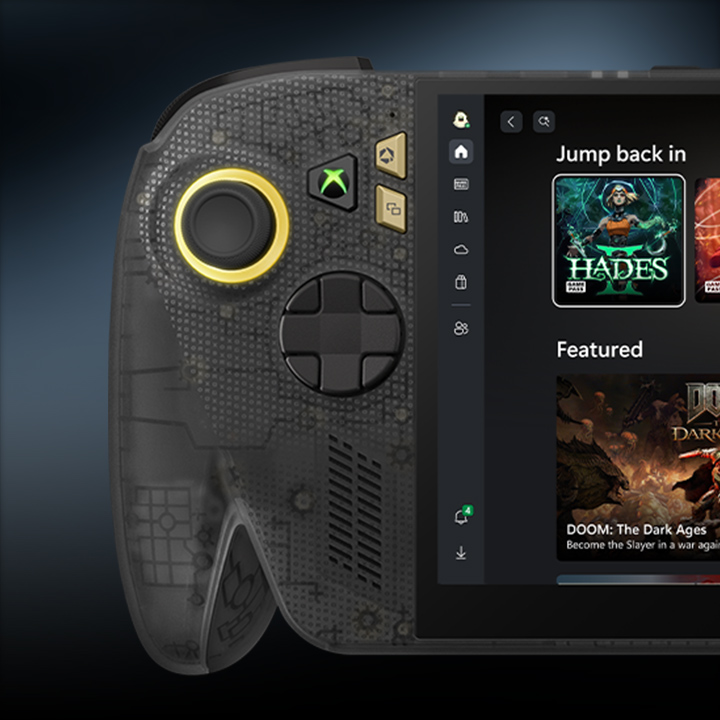
## Quick picks
- **Steam-first, console-like setup:** Steam Deck OLED.
- **Windows gaming at the lower end of ASUS’s range:** ROG Xbox Ally (2025, non-X).
- **More memory and battery in the 2025 Ally line:** ROG Xbox Ally X (2025).
- **The newest ASUS screen and controls:** ROG Xbox Ally X20 (2026), but it is **not on sale yet** as of this update. ASUS says sales start October 15; US preorders list it at $1,299.99. Regional price and availability may differ.
- **Large display and detachable controllers:** Lenovo Legion Go 2.
- **An 8-inch screen in a conventional handheld:** Lenovo Legion Go S or MSI Claw 8 AI+; check the exact processor and operating-system version.
## At a glance
Battery capacity does not predict play time by itself. Brightness, frame rate, game, resolution and power profile all matter; compare independent tests of the games you actually play.
### Steam Deck OLED
- **Chip, memory and storage:** AMD Zen 2 APU with RDNA 2 graphics; 16 GB LPDDR5; 512 GB or 1 TB SSD, plus microSD.
- **Display:** 7.4-inch HDR OLED, 1280 × 800, up to 90 Hz.
- **Battery, weight and OS:** 50 Wh; about 640 g; SteamOS.
- **Best for:** a focused Steam library, trackpads and a polished controller-first interface. Its lower resolution is easier to drive, though the chip is older than those in newer Windows models.
### ROG Xbox Ally (2025, non-X)
- **Chip, memory and storage:** AMD Ryzen Z2 A; 16 GB LPDDR5-6400; 512 GB M.2 2280 SSD.
- **Display:** 7-inch 1920 × 1080 IPS, 120 Hz with VRR.
- **Battery, weight and OS:** 60 Wh; about 670 g; Windows 11 Home.
- **Best for:** Windows launchers and the lower-cost entry to ASUS’s Xbox-branded handheld line. Its memory and storage are lower than the X models.
### ROG Xbox Ally X (2025)
- **Chip, memory and storage:** AMD Ryzen AI Z2 Extreme; 24 GB LPDDR5X-8000; 1 TB SSD.
- **Display:** 7-inch 1080p IPS, 120 Hz with VRR.
- **Battery, weight and OS:** 80 Wh; about 715 g; Windows 11 Home.
- **Best for:** more memory, storage and battery capacity than the base 2025 Ally. It has an IPS screen and is **not** the newer X20.
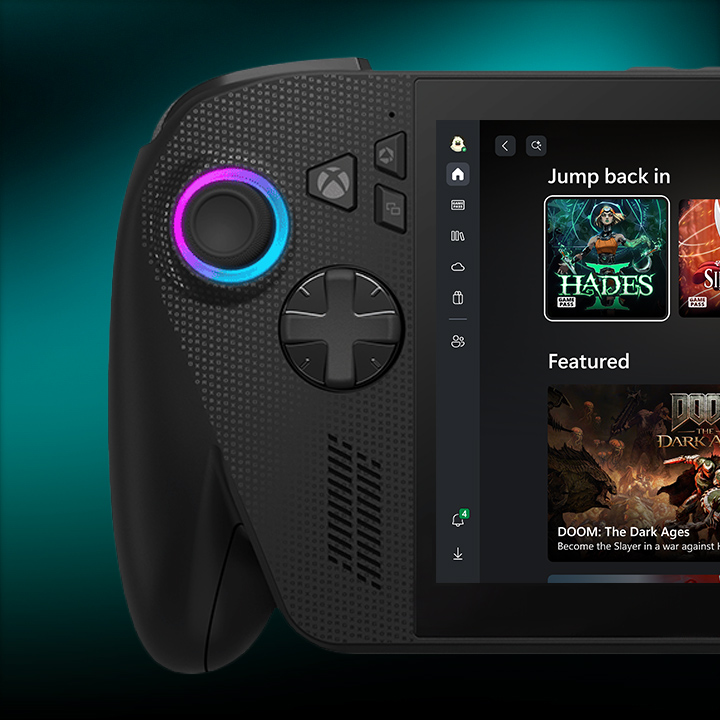
### ROG Xbox Ally X20 (2026): upcoming as of October 8
- **Chip, memory and storage:** AMD Ryzen AI Z2 Extreme; 24 GB LPDDR5X; 1 TB SSD.
- **Display:** 7.4-inch 1920 × 1080 HDR OLED, 120 Hz with VRR.
- **Battery, weight and OS:** 80 Wh; about 756 g; Windows 11 Home.
- **What changes:** OLED display, TMR sticks, a transforming D-pad, impulse triggers and microSD Express. ASUS says sales begin **October 15, 2026**. Its US listing is $1,299.99; pricing and availability vary by region. Treat it as an upcoming option until it is actually available where you live.
### Lenovo Legion Go S
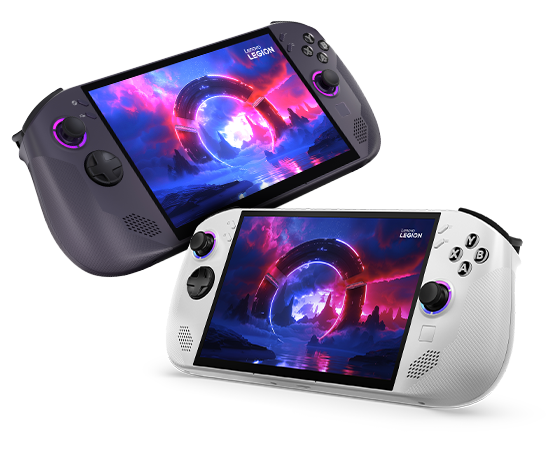
- **Chip, memory and storage:** Ryzen Z2 Go or Z1 Extreme configurations; up to 32 GB memory and 1 TB SSD, depending on SKU.
- **Display:** 8-inch 1920 × 1200 IPS, up to 120 Hz with VRR.
- **Battery, weight and OS:** 55.5 Wh; about 740 g; Windows or SteamOS depending on model and market.
- **Best for:** a larger 16:10 screen without detachable controllers. Check the model number: processor, memory and OS differ between versions.
### Lenovo Legion Go 2

- **Chip, memory and storage:** Ryzen Z2 or Z2 Extreme configurations; options vary by SKU.
- **Display:** 8.8-inch 1920 × 1200 OLED, 144 Hz, HDR.
- **Battery, weight and OS:** 74 Wh; about 920 g with controllers; Windows 11 on the listed configurations.
- **Best for:** a large screen, kickstand and detachable controllers. The size and weight are a real portability trade-off. Check local stock and the specification sheet for the exact configuration.
### MSI Claw 8 AI+
- **Chip, memory and storage:** Intel Core Ultra 7 Series 2 with Arc 140V graphics; 32 GB LPDDR5X; replaceable M.2 2230 SSD.
- **Display:** 8-inch 1920 × 1200 IPS touchscreen, 48–120 Hz with VRR.
- **Battery, weight and OS:** 80 Wh; about 795 g; Windows 11 Home.
- **Best for:** a large VRR display, 32 GB memory, Wi-Fi 7 and two Thunderbolt 4 ports. Compare tested performance game by game; Intel and AMD handhelds do not perform identically across every title.
## What matters more than the spec sheet?
**Your game library and OS.** SteamOS is streamlined for Steam and controller use. Windows supports more launchers and services, but brings desktop updates and extra setup. Multiplayer anti-cheat support on Linux varies by game, so check the specific titles you play before choosing SteamOS.
**Resolution and performance.** A 1200p screen can look sharper than the Deck’s 800p panel, but it also asks more of the GPU. Compare devices at similar resolution, graphics settings and power limits; otherwise performance claims are hard to interpret.
**Comfort and real battery life.** Large batteries add capacity, not a guaranteed number of gaming hours. Try the grips if possible, especially on the heavier Legion Go 2. Weight, fan noise and controls can matter more than a small benchmark gap during a long session.
## How to choose
- Choose **Steam Deck OLED** for SteamOS, trackpads and a Steam-first interface.
- Choose **ROG Xbox Ally** for Windows and the entry-level 2025 ASUS option.
- Choose **ROG Xbox Ally X (2025)** for the higher-spec 2025 Ally configuration.
- Consider **ROG Xbox Ally X20** if its OLED and control upgrades justify the price; it goes on sale October 15, so check reviews and local availability after launch.
- Choose **Legion Go S** for an 8-inch screen in a fixed handheld, after confirming the correct OS and processor SKU.
- Choose **Legion Go 2** if the large OLED and detachable controllers outweigh its size and weight.
- Consider **MSI Claw 8 AI+** for its Intel platform, 32 GB memory and ports, after comparing performance in your games.
There is no universal winner. If you share your country, budget, main games and OS preference, the community can narrow down the best fit.
For Lenovo’s detachable-controller design, see its [official Legion Go 2 launch trailer](https://www.youtube.com/watch?v=7OR1cqBf_T4).
## Official specifications and availability
- [ASUS: ROG Xbox Ally X20 preorder and October 15 sale date](https://rog.asus.com/us/articles/rog-ally/pre-order-your-rog-xbox-ally-x20-today-standalone-or-as-part-of-an-incredible-rog-20th-anniversary-bundle/)
- [Xbox: ROG Xbox Ally lineup](https://www.xbox.com/en-us/handhelds/rog-xbox-ally)
- [Steam Deck technical specifications](https://www.steamdeck.com/en/tech)
- [Lenovo Legion Go S specifications](https://psref.lenovo.com/syspool/Sys/PDF/Legion/Legion_Go_S_8ARP1/Legion_Go_S_8ARP1_Spec.PDF)
- [Lenovo Legion Go 2 Z2 Extreme specifications](https://psref.lenovo.com/syspool/Sys/PDF/Legion/Legion_Go_8ASP2/Legion_Go_8ASP2_Spec.pdf)
- [MSI Claw 8 AI+ specifications](https://www.msi.com/Handheld/Claw-8-AI-Plus-A2VMX/Specification)
Checked October 8, 2026. CachyOS Handheld Edition is an Arch-based Linux system for devices such as Steam Deck, ROG Ally and Lenovo Legion Go. It aims to provide a controller-friendly Game Mode while retaining a rolling-release desktop and current packages. That flexibility also means more frequent changes than a console-style fixed system.

## What it includes
The [Handheld Edition documentation](https://wiki.cachyos.org/installation/installation_handheld/) describes Game Mode Switching, preinstalled gaming apps, KDE Plasma, the LAVD CPU scheduler, Limine with automatic snapshots, and systemd-boot as an alternative. Those are project design choices, not guarantees of better frame rates or battery life: results depend on the handheld, game, power profile, drivers and version.
One detail deserves a double-check: the separate [CachyOS-Handheld GitHub README](https://github.com/CachyOS/CachyOS-Handheld) still describes systemd-boot as the default, while the current wiki describes Limine and snapshots. Check the release notes and the installer’s actual bootloader choices for the ISO you download, especially if you plan to dual-boot.
## Install carefully
1. **Download the latest Handheld ISO** from the official [CachyOS download page](https://cachyos.org/download/) and follow the [USB preparation and verification steps](https://wiki.cachyos.org/installation/installation_prepare/). Verify the published checksum or signature before installation.
2. **Back up the internal drive.** The current root-install guide recommends “Erase Disk.” That removes the existing system and data. Do not choose it unless you intend to wipe the drive.
3. **For dual-boot, use the manual partition guide.** CachyOS warns that replacing another distribution’s partition may not work as expected. Do not assume an existing Windows/Linux layout is compatible; confirm the bootloader and partition plan before writing changes.
4. **After installation, test the basics:** Wi-Fi, audio, controls, screen orientation, sleep and wake, TDP controls, external display and the games you play. Keep a separate backup even when snapshots are enabled.
Snapshots can help recover from some bad system updates, but they are not a backup against drive failure or accidental deletion of personal files. Arch-based rolling updates also reward users who read update notes and are comfortable troubleshooting. If a major update is mission-critical, wait for the project’s current guidance and make sure you have a recovery plan before installing it.
## What a handheld test can—and cannot—tell you
A review on one model is useful for seeing the interface and setup, but it cannot settle compatibility for all handhelds. Input controls, sleep behavior, audio, fingerprint readers, firmware tools and TDP controls vary by hardware. When reporting a problem, include the device model, ISO date, bootloader, firmware and the specific feature that failed. For performance claims, compare the same game and settings at the same power limit.
## How it compares
- **CachyOS Handheld:** handheld-focused tools and a rolling Arch base for users who want control and can maintain it.
- **SteamOS:** Valve’s most integrated Steam Deck experience; support on other hardware is model-specific.
- **Bazzite:** a Fedora Atomic gaming image with Steam Gaming Mode, device guides and system rollback.
- **Anatase:** an immutable image with HHD controls and Spaces, but a newer and faster-moving project.
No distribution is universally fastest. Compare the same game at the same resolution, settings and power limit, and check Linux anti-cheat support for multiplayer games before switching.
## Creator walkthrough: CachyOS on MSI Claw
[PickleFlickPF’s CachyOS test on the MSI Claw A1M](https://youtu.be/Ki62OuXCYhw) shows the install, handheld adjustments and game testing on that specific device. The creator’s notes describe a few manual changes to the handheld setup and mixed compatibility results. Treat it as an individual field test, not a benchmark or a promise that the same configuration will work on a Steam Deck, Ally or Legion Go.
## Official references
- [CachyOS Handheld Edition install guide](https://wiki.cachyos.org/installation/installation_handheld/)
- [CachyOS downloads and ISO verification](https://cachyos.org/download/)
- [USB preparation guide](https://wiki.cachyos.org/installation/installation_prepare/)
- [Handheld Edition source and README](https://github.com/CachyOS/CachyOS-Handheld)
- [Bazzite handheld guide](https://docs.bazzite.gg/Handheld_and_HTPC_edition/Handheld_Wiki/)
- [Valve SteamOS](https://store.steampowered.com/steamos/)
- [Anatase](https://anatase.org/)
If you have installed it, share the handheld model, ISO date, bootloader choice and any issues. Those details are more useful than a general performance claim.
Checked October 8, 2026. SteamOS is Valve’s Linux-based, Steam-first operating system. It combines a controller-focused gaming interface with a KDE Plasma desktop, but Valve’s improved compatibility with other AMD PCs should not be confused with full official support for every handheld.
## Current release: SteamOS 3.8.28
Valve released SteamOS 3.8.28 to all users on September 24. Its notes include a newer Mesa graphics stack, improved VRAM management, preliminary Steam Frame Wireless Adapter support and built-in controller-driver support for the 2026 Steam Controller. These changes can help some systems, but they do not guarantee better performance in every game or on every device. Read the [full release notes](https://steamcommunity.com/ogg/1675200/announcements/detail/711161056325534553) before updating.
The Preview/Beta channel can contain a newer build than Stable. If the handheld is your daily-use device, stay on Stable unless you are willing to test software and troubleshoot regressions. Before changing channels, note your current version so you can report a regression clearly.
## Is my handheld officially supported?
Valve currently lists Steam Deck, Steam Machine and Lenovo Legion Go S as devices officially “Powered by SteamOS.” Valve says SteamOS 3.8 improves compatibility with other AMD-powered PCs, including handhelds and desktops, and provides an image for people who want to test on their own hardware. That is not the same as a promise of complete support: buttons, audio, Wi-Fi, power controls, sleep and updates can vary by model.
For a Steam Deck, SteamOS remains the straightforward reference experience. Before installing on another device, check Valve’s [compatibility FAQ](https://store.steampowered.com/steamos/) and [recovery instructions](https://store.steampowered.com/steamos/download/), plus reports for your exact model. Back up the drive first; recovery and partition changes can erase data. Verify that the games you need—especially multiplayer games with anti-cheat—work on Linux.
## First setup checklist
1. Use Valve’s current recovery image and follow its instructions; avoid unofficial repacks.
2. Back up personal files and any Windows recovery key before changing partitions.
3. After setup, test controls, Wi-Fi, speakers, display orientation, sleep and resume, TDP, external display and charging.
4. Install non-Steam launchers only if you need them. Desktop Mode supports additional software, but it can take more setup than Steam’s own library.
5. Recheck compatibility after major updates. Steam Deck Verified labels are useful guidance for Steam games, not a guarantee for every third-party launcher or device.
A useful compatibility report names the handheld, SteamOS version, BIOS/firmware and the exact feature or game tested. “It works on my Ally” can mean a different model, BIOS and release from yours. For performance comparisons, also match the game, resolution, graphics settings and power limit.
## Quick comparison
- **SteamOS:** the most cohesive fit for Steam Deck and officially supported SteamOS hardware.
- **Bazzite:** a Fedora Atomic alternative with Steam Gaming Mode, handheld-specific guidance and documented rollback options.
- **Anatase:** HHD integration and “Spaces,” with faster-moving releases and model-specific caveats.
- **CachyOS Handheld:** an Arch-based rolling system for people comfortable managing updates and device tuning.
There is no universal winner. Choose around your hardware, game library and willingness to maintain the system.
## Creator video: SteamOS on another handheld
[The Phawx’s SteamOS 3.8 test on the ASUS ROG Ally](https://youtu.be/LEX6WujAXE0) includes gameplay demonstrations and a comparison with Steam Deck hardware. It is an early, device-specific test—not evidence that every Ally feature works or that Valve officially supports every PC handheld. Use Valve’s current compatibility and recovery pages above for installation decisions.
## Official references
- [SteamOS overview and compatibility FAQ](https://store.steampowered.com/steamos/)
- [SteamOS recovery image and instructions](https://store.steampowered.com/steamos/download/)
- [SteamOS 3.8.28 release notes](https://steamcommunity.com/ogg/1675200/announcements/detail/711161056325534553)
- [Steam Deck specifications](https://steamdeck.com/en/tech)
- [Bazzite handheld guide](https://docs.bazzite.gg/Handheld_and_HTPC_edition/Handheld_Wiki/)
- [Anatase](https://anatase.org/)
- [CachyOS Handheld Edition](https://wiki.cachyos.org/installation/installation_handheld/)
Compatibility changes with updates. When sharing results, include the exact device, SteamOS version and which controls or games you tested.
Checked October 12, 2026. Bazzite is a gaming-focused Fedora Atomic system with a SteamOS-style Gaming Mode and a KDE or GNOME desktop. Its Deck image is designed for handhelds, but “boots successfully” does not mean every control or device feature is supported. Check the page for your exact model before installing.
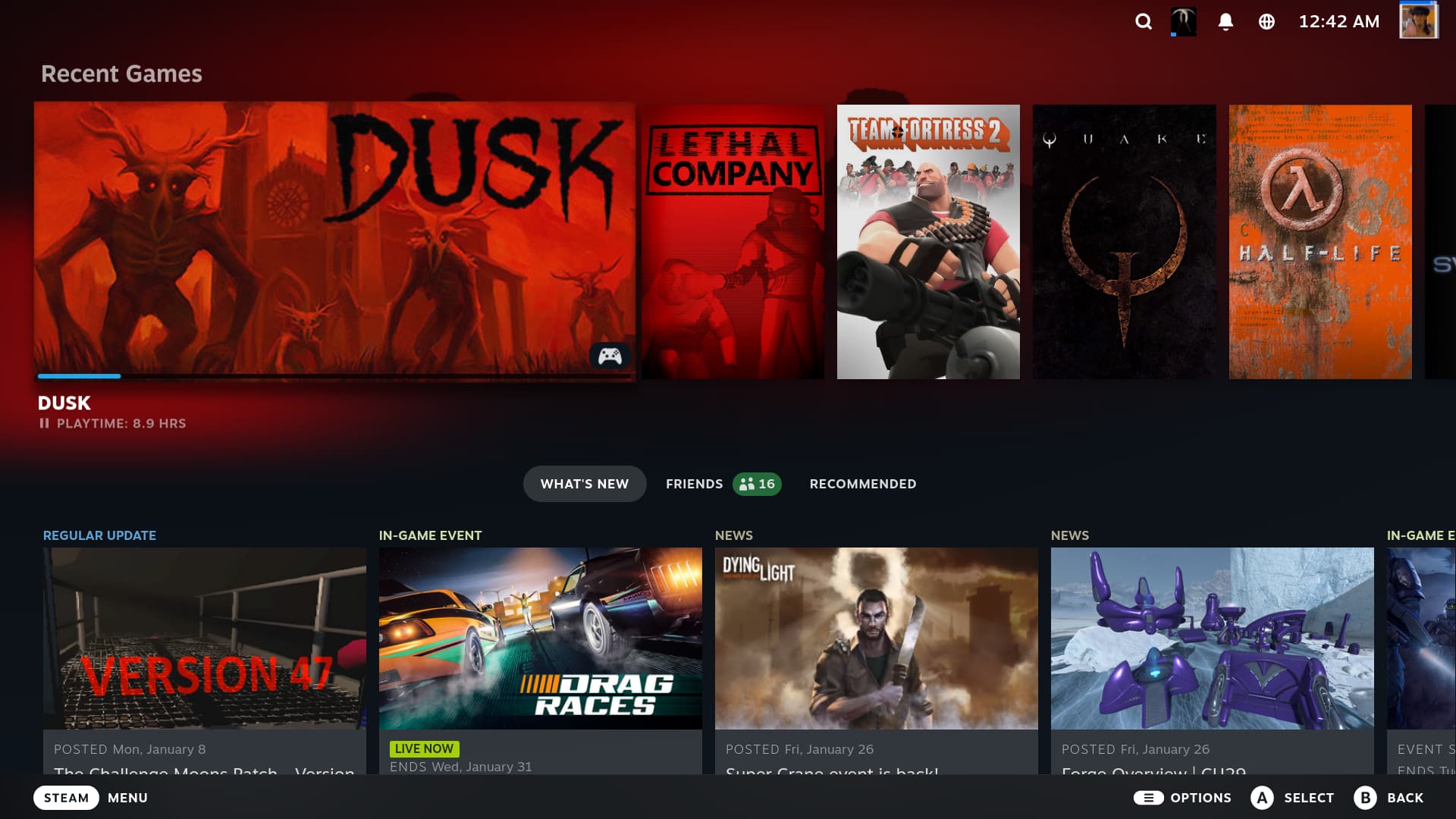
## What Bazzite adds on a handheld
Bazzite Deck 44 uses OpenGamepadUI and InputPlumber for handheld controls, alongside Steam Gaming Mode. TDP, GPU-clock and fan controls depend on the device and the control tool available for it. The official [handheld wiki](https://docs.bazzite.gg/Handheld_and_HTPC_edition/Handheld_Wiki/) lists device-specific working features, quirks and workarounds; its supported-device list is not exhaustive, and unlisted hardware may need manual setup or lack drivers such as audio.
Bazzite is not SteamOS under a different name. It is an image-based Fedora system with its own update, support and rollback workflow. Decky plugins can break or be removed after updates, so treat them as optional and check the current notes when troubleshooting.
## What changed in Bazzite’s October stable update
Bazzite’s October 6 stable image is tagged 44.20261006.1 and uses the Open Gaming Collective 7.2.8 kernel. The maintainers also report updated InputPlumber with gyro and rumble improvements, fixes for Bluetooth initialization on some hardware, and a fix for suspend issues on the ASUS ROG Ally. Those are targeted changes, not a guarantee that every handheld feature works on every model. See the [maintainers’ October update notes](https://universal-blue.discourse.group/t/bazzite-keeps-moving-312-commits-later-and-nearly-100k-weekly-active-devices/12562) and the [stable release record](https://github.com/ublue-os/bazzite/releases/tag/44.20261006.1).
If you already use the stable channel, update with Bazzite Updater, reboot, then retest suspend/resume, Bluetooth and your controls before relying on the device. The project’s October 11 build is marked Testing in the [release list](https://github.com/ublue-os/bazzite/releases), so don’t switch channels just to get a newer version number unless you intend to evaluate prerelease software.
## Install without risking your data
1. **Pick the right image.** Use the [official image selector and install guide](https://docs.bazzite.gg/General/Installation_Guide/install-guide/). The `-deck` image targets Steam Gaming Mode; desktop images have different defaults.
2. **Back up the drive.** Installation can erase partitions. For Windows dual-boot, save the BitLocker recovery key, disable Fast Startup and follow Bazzite’s current dual-boot instructions before repartitioning.
3. **Check the model page.** Review buttons, audio, Wi-Fi, gyro, TDP, sleep and wake behavior, BIOS updates and known issues for your exact handheld.
4. **Test before customizing.** After installation, update and reboot, then test the controls, audio, Wi-Fi, suspend and resume, external display and the games you rely on. Linux anti-cheat support varies by game; verify multiplayer titles in advance.
## If an update causes trouble
Bazzite keeps a previous system deployment available by default. You can roll back through Bazzite Updater; if the desktop will not start, the official instructions describe using the boot menu or running `rpm-ostree rollback` from a terminal, then rebooting. Rollback does not affect personal files, but it is not a substitute for a separate backup. Read the [rollback guide](https://docs.bazzite.gg/Installing_and_Managing_Software/Updates_Rollbacks_and_Rebasing/rolling_back_system_updates/) before you need it.
## Which system fits?
- **Bazzite:** Steam Gaming Mode plus a flexible desktop, device guides and system-image rollback.
- **Anatase:** HHD integration and Spaces on an immutable image; newer, with release-channel and hardware caveats.
- **SteamOS:** the integrated Valve experience, especially on Steam Deck and officially supported devices.
- **CachyOS Handheld:** an Arch rolling release with handheld-focused tools for users comfortable managing frequent changes.
No one option wins every benchmark. Match the operating system to your exact model, game library and tolerance for maintenance. If you compare performance, keep the game, resolution, settings and power limit consistent; one creator’s result on one firmware and image should not be generalized to every handheld.
## Creator walkthrough
[Digital Foundry’s Bazzite hands-on video](https://youtu.be/OwWRCrGoXV0) shows the system running on a Windows gaming handheld and discusses the SteamOS-like interface. It is useful for seeing the experience, but it covers a specific device and an older build; use the current Bazzite device wiki for today’s compatibility and installation advice.
## Official links
- [Bazzite downloads and image selector](https://bazzite.gg/)
- [Installation guide](https://docs.bazzite.gg/General/Installation_Guide/install-guide/)
- [Handheld wiki](https://docs.bazzite.gg/Handheld_and_HTPC_edition/Handheld_Wiki/)
- [Updates and rollbacks](https://docs.bazzite.gg/Installing_and_Managing_Software/Updates_Rollbacks_and_Rebasing/rolling_back_system_updates/)
- [SteamOS](https://store.steampowered.com/steamos/)
- [Anatase](https://anatase.org/)
- [CachyOS Handheld Edition](https://wiki.cachyos.org/installation/installation_handheld/)
Tell us the handheld model, Bazzite image and release, and what worked or failed; those details make troubleshooting much more useful.
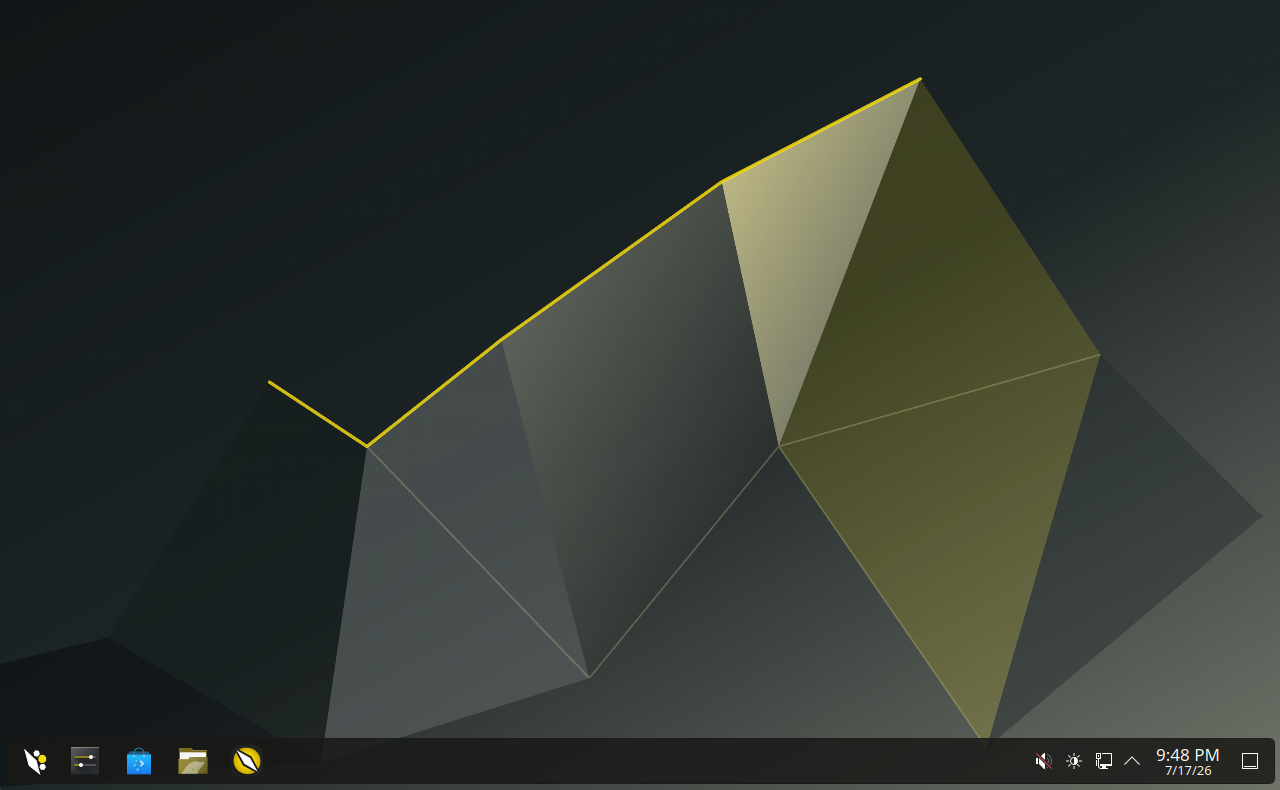
Checked October 8, 2026. Anatase is an immutable Linux image for handhelds and PCs, with KDE Plasma, an optional controller-first Game Mode and Handheld Daemon (HHD) integration. It is still a fast-moving project, so check the exact device and release channel before replacing an operating system.
## What makes Anatase different?
The project combines one image for handhelds and regular PCs with device controls for mappings, gyro, back buttons, fan curves and TDP. Which controls work depends on the hardware. Its “Spaces” feature can run separate Arch, Fedora, Ubuntu or Kali environments and integrate their apps into the desktop. The project has not presented Spaces as a formally security-reviewed sandbox, so do not use it to isolate untrusted software.
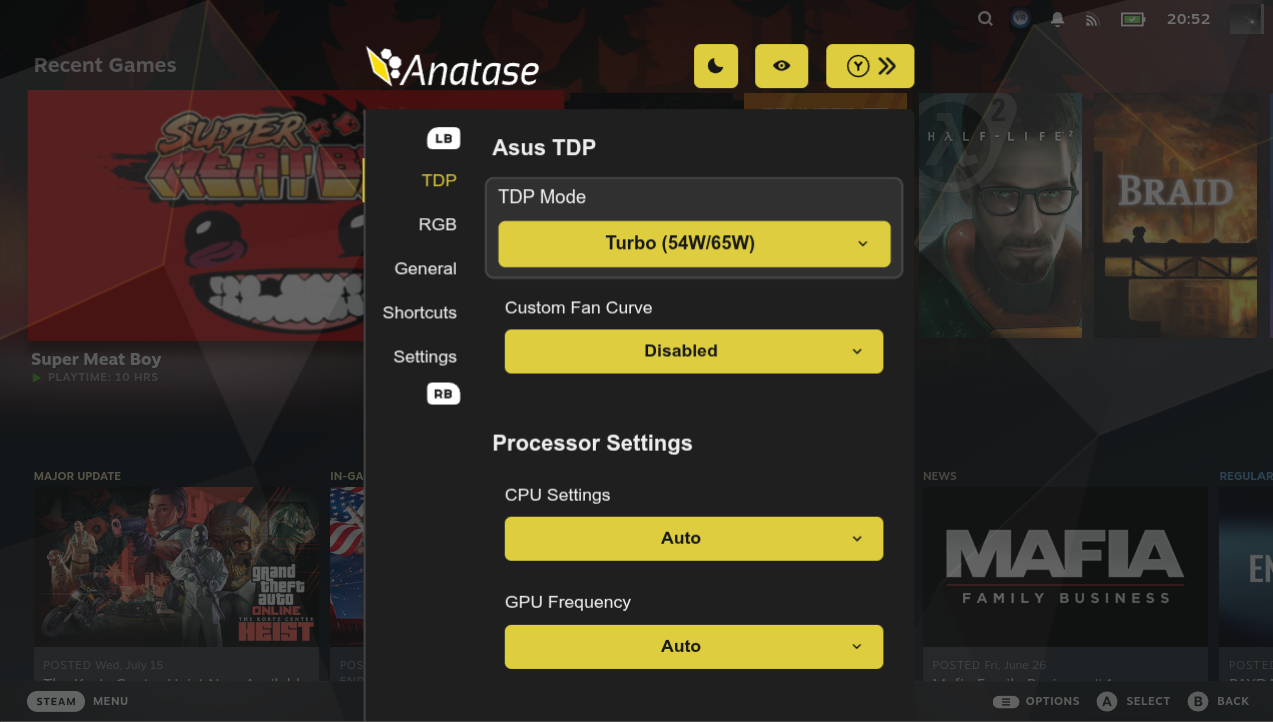
Anatase also offers universal 2× frame generation in Game Mode. Treat that as a feature to test, not a guarantee of twice the native rendering speed: latency, image quality, compatibility and anti-cheat support can vary by game.
## What changed recently?
The project’s release page lists stable build 20260928.9, with ARM ISO and SD-card images, Steam Game Mode support on ARM, Steam Deck OLED speaker firmware, an OneXPlayer 3 VRR fix and other device fixes. A newer 20261005.1 rolling build is marked pre-release. If you want fewer surprises, choose the stable channel; use rolling only if you are comfortable testing newer components and troubleshooting regressions. Check the [release page](https://github.com/anatase-org/anatase/releases) immediately before downloading because these tags move quickly.
## Before you install
1. **Confirm support for your exact model.** Read the [Anatase device notes](https://docs.anatase.org/) and the [HHD supported-device list](https://github.com/hhd-dev/hhd). Similar model names can hide differences in sleep, audio, buttons and power controls.
2. **Back up first.** Installation and partition changes can erase the internal drive. Save your Windows BitLocker recovery key if you plan to dual-boot.
3. **Use the current ISO instructions.** Download from [Anatase](https://anatase.org/), verify the checksum or signature when supplied, and follow that release’s installer steps. Do not assume another distribution’s dual-boot instructions apply.
4. **Plan for encryption and Secure Boot.** Anatase says encryption must be enabled during installation. Secure Boot can require manual key enrollment, and a drained battery or power failure may require enrolling the key again.
5. **Check graphics support.** The project currently lists GTX 1000-series and older NVIDIA GPUs as unsupported; confirm the current hardware notes before installing on a PC.
After setup, test Wi-Fi, audio, sleep and wake, controls, gyro, fan and TDP controls, external displays and the games you actually play. Keep the installer USB until the system has passed several reboots and sleep cycles. Record the exact device, BIOS version and Anatase channel when troubleshooting; those details matter more than a general claim that “Linux works” on a model family.
## How it compares
- **Anatase:** HHD controls, an immutable base and Spaces; newer and changing quickly.
- **Bazzite:** Fedora Atomic gaming images, device-specific guidance and documented rollbacks.
- **SteamOS:** Valve’s most integrated Steam Deck experience; support on other hardware remains limited and model-specific.
- **CachyOS Handheld:** an Arch-based rolling system with handheld tools and snapshots; expect more frequent changes and hands-on maintenance.
No distribution guarantees the best frame rate or battery life on every device. Results depend on the handheld, game, power limit, driver and settings. For a fair comparison, test the same game, resolution, graphics preset and power limit, and check multiplayer anti-cheat compatibility before switching.
## Creator walkthrough
[Hooandee’s Anatase installation walkthrough on YouTube](https://youtu.be/96ACORxd6PQ) follows a handheld-PC install and first setup. It is in Spanish, so treat it as a visual walkthrough if you do not speak Spanish; the video is a creator’s example, not a compatibility guarantee for every device or release.
## Official references
- [Anatase downloads and overview](https://anatase.org/)
- [Anatase releases and changelog](https://github.com/anatase-org/anatase/releases)
- [Anatase documentation](https://docs.anatase.org/)
- [HHD supported devices](https://github.com/hhd-dev/hhd)
- [Bazzite handheld documentation](https://docs.bazzite.gg/Handheld_and_HTPC_edition/Handheld_Wiki/)
- [Valve SteamOS compatibility](https://store.steampowered.com/steamos/)
- [CachyOS Handheld Edition](https://wiki.cachyos.org/installation/installation_handheld/)
This is a practical overview, not a promise that every feature works on every handheld. If you have tried Anatase, include the exact device, release channel and what worked or failed.

I just came across **Anatase**, a new Linux gaming OS aimed at handheld PCs, and it looks genuinely interesting.
It seems to take a lot of the ideas that make SteamOS and Bazzite work so well on handhelds — booting straight into a controller-friendly gaming mode, TDP controls, VRR, HDR, FPS limiting, gyro support, etc. — but there are a couple of things that make Anatase stand out.
One of them is that they want to use a **single image across handhelds, laptops, desktops and HTPCs**, with support for AMD, Intel and NVIDIA hardware. They already list support for a pretty large number of handhelds, including the ROG Ally, Legion Go, MSI Claw, GPD, Ayaneo and OneXPlayer devices.
It also integrates **HHD (Handheld Daemon)** and has system-level 2x frame generation available from Game Mode, which could be particularly useful on lower-powered handhelds.
But the part I find most interesting is **Spaces**.
The base OS is immutable, but you can create isolated Arch, Fedora, Ubuntu, Kali, etc. environments and install software from those distributions without messing with the base system. So in theory you get the reliability of an immutable gaming OS without making the machine annoying to use as an actual Linux PC.
Desktop mode uses KDE Plasma, so you can still dock the handheld and use it like a normal computer.
Obviously it's a very new project, so I wouldn't replace a perfectly working Bazzite or SteamOS installation expecting everything to be better straight away. There are going to be bugs and hardware-specific issues to iron out.
Still, this looks like one of the more interesting Linux gaming projects I've seen recently, especially for handheld PCs.
Has anyone here actually tried Anatase yet? I'd be really interested in hearing how it compares with Bazzite or SteamOS in terms of battery life, suspend/resume, performance and general hardware support.
https://anatase.org/
https://www.youtube.com/watch?v=XhH4LER0R8U